
OneGlass 8 - Icon Pack
EatosPersonalization
4.813.00 Reviews
- Version
- 1.3.5
- Installs
- 10.00K
- Age Rating
- Everyone
Screenshots
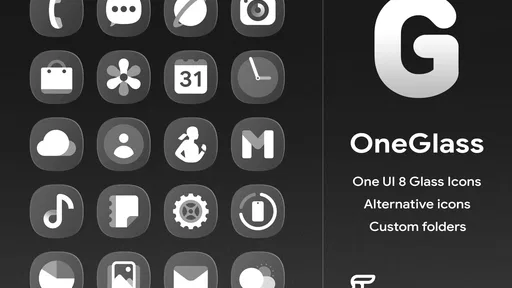
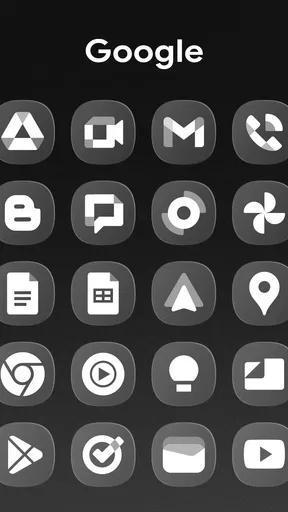
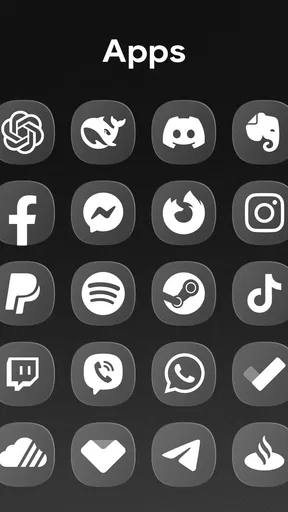
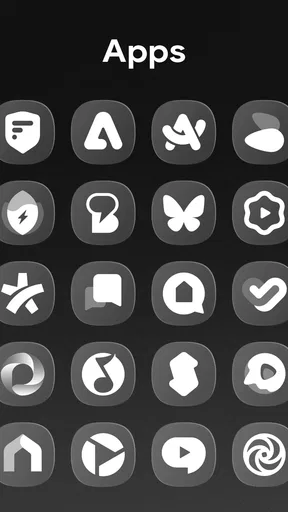
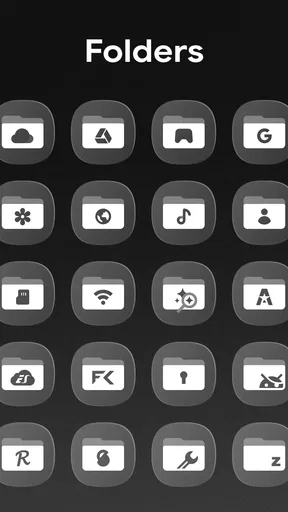
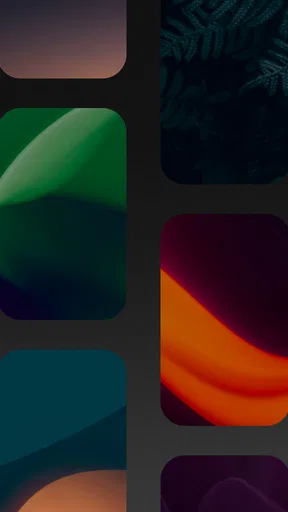
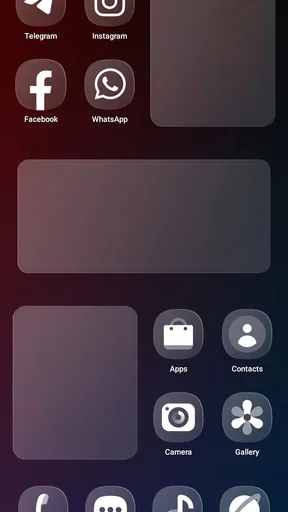
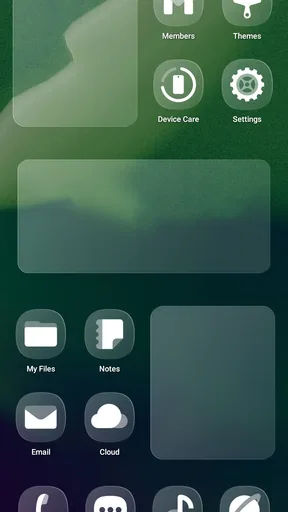
Our Review of OneGlass 8 - Icon Pack
 Analysis by Appyee
When I consider a paid icon pack, I look beyond whether the icons look polished: I want to know what kind of change I’m actually choosing for my phone, how much control I keep, and whether the price makes sense for my habits. OneGlass 8 - Icon Pack is a personalization app from Eatos, built around a glass-inspired visual style. It is currently priced at $1.49, and its Everyone age rating makes it suitable for a broad audience. I see its appeal as a focused home-screen makeover rather than a tool that changes how the phone works.
A visual choice, not a phone overhaul
OneGlass 8 presents a clear trade-off: its glass look can make a home screen feel more considered, but it also creates a stronger visual identity than a plain, default icon set. That works well if you enjoy a coordinated screen and want the icons to feel like part of one design. If you prefer each app to retain its familiar, unaltered appearance, a subtler pack—or simply the icons that came with your phone—may suit you better.
I would treat an icon pack as one part of a home-screen setup, not as a complete theme by itself. Before committing to a full rearrangement, I’d try it on the main screen first and check whether the new shapes still read clearly against my wallpaper. A glass treatment can look especially tidy over a quiet background; a busy image may compete with the details. That small test helps answer the practical question of whether the style feels good in everyday use, not just in a carefully composed screenshot.
Trust, cost and everyday expectations
The pack has an average rating of 4.8 from 247 ratings, with 13 written reviews, and has reached over 10,000 installs. Those figures suggest that plenty of people have chosen it, but I wouldn’t treat popularity as proof that its look will suit every screen or launcher. The better test is whether the glass aesthetic matches your taste and whether your preferred launcher can apply icon packs in the way you expect.
At $1.49, the price is a small but real commitment for a visual customization app. I’d decide based on how often I actually notice my icons: if I spend a lot of time on the home screen and enjoy refining its appearance, the cost may feel worthwhile. If I rarely change my layout, or I’m already satisfied with the default icons, it is easy to skip without missing a core phone feature. The app is at version 1.3.5, and it was released on April 14, 2025.
For a data-conscious choice, I avoid assuming that an icon pack is automatically private or intrusive just because its purpose is visual. I check the permissions shown by Android before installing, read any privacy details presented on the app’s store page, and pay attention to the choices Android asks me to make. Those checks are more useful than guessing from the app’s appearance. I also keep in mind that applying icons through a launcher may involve settings in that launcher, so I review those controls separately rather than attributing every prompt to the pack itself.
Who is likely to enjoy it?
I’d recommend considering OneGlass 8 if you like minimalist layouts but want more character than a standard set of system icons provides. It may also suit someone who enjoys making small seasonal or mood-based changes: switching a wallpaper and adjusting icon placement can refresh the feel of a phone without replacing the device or rebuilding every setting. On the other hand, it is not the right pick for someone who wants a full interface redesign, expects every app on the phone to have a custom icon, or dislikes changing launcher settings.
A useful way to judge coverage is to check the apps you open most often rather than counting icons or judging the pack by its broadest-looking screen. Think about messaging, maps, camera, work tools and the other apps you reach for every day. If those are easy to recognize and the rest of your layout still feels coherent, the pack is doing the job that matters. If an important app stands out because it keeps its original icon, you may prefer a pack with a different visual approach or simply keep that app in a separate folder.
Compatibility also deserves a practical check. Android icon packs rely on launcher support, so the installation alone does not guarantee that every home-screen setup will apply them identically. I’d look for the icon-pack option in the launcher I already use before paying, and I wouldn’t switch launchers just to force a style unless I was comfortable with the extra setup. The minimum operating system is Android 5.0, but the launcher remains an important part of the experience.
First Impressions of OneGlass 8 - Icon Pack
As soon as I installed OneGlass 8 - Icon Pack, I was greeted by a sleek and modern design. The icons are crafted with such finesse that they instantly inject a new life into the home screen. Each icon is like a little piece of art, with a clear emphasis on smooth lines and a uniform color palette. The attention to detail is truly commendable.
The app itself is incredibly easy to navigate. You don’t need to be a tech wizard to get things set up. A few taps here and there, and boom, your phone looks like it just rolled off the digital assembly line. It’s compatible with most major launchers, which is a huge plus. So whether you're rocking Nova, Apex, or something else, you’re covered.
Diving Deeper into Features
Now, let's talk about what makes this icon pack stand out. First off, the sheer variety of icons is impressive. There are over a thousand icons available, and each one is designed to fit seamlessly with the others. This means you won't have any mismatched icons sticking out like a sore thumb.
One of my favorite features is the dynamic calendar support. It's such a small detail, but having your calendar icon update with the date is a nice touch that adds to the overall polished feel. Plus, if you're someone who likes to switch things up regularly, the app offers a plethora of wallpapers that complement the icons perfectly.
The app also offers a handy icon request feature. If there's an app on your phone that isn't yet supported, you can simply request it, and the developers will likely include it in future updates. This level of support is pretty rare, and it shows that the developers are committed to keeping the pack fresh and relevant.
Everyday Use and Personal Experience
Using the OneGlass 8 - Icon Pack on a daily basis has been a delight. It’s surprising how much a simple change in icons can affect your user experience. The icons are not just pretty; they’re functional, with each design clearly representing its app, which is crucial for usability.
I've also noticed that the app doesn’t hog resources. My phone’s performance has remained snappy, which is often a concern with aesthetic modifications. The lightweight nature of the icon pack ensures that your phone looks good without sacrificing speed.
Making the style work day to day
The clearest benefit shows up in a routine I know well: reaching for the phone between tasks, scanning the home screen for a calendar or message app, then putting it away again. A consistent set of icons can make that screen feel calmer, but visual consistency is useful only if I can still identify the apps quickly. I’d keep the most-used icons in familiar positions while testing the pack, instead of changing both the artwork and the layout at once. That way, if something feels slower to find, I can tell whether the cause is the new design or my rearrangement.
There’s also a sensible way to handle apps that don’t match the pack. Rather than letting one unsupported icon disrupt the whole screen, I’d place less-used apps in a folder or on a secondary page, while keeping the daily essentials together. This is not a special function of the pack; it is a practical layout choice that makes a cohesive style easier to live with. It also avoids spending time chasing perfect uniformity when what matters most is a home screen that remains easy to use.
For someone who changes wallpapers often, I’d choose the background after applying the icons, not before. A low-detail image gives the glass effect room to stand out, while a bright or patterned wallpaper can make individual shapes less distinct. If the icons seem faint at a glance, I’d first try a simpler background and adjust the placement of widgets before deciding the pack itself is the problem. That quick comparison can save an unnecessary purchase or launcher change.
What to check before settling on it
One practical question is whether the pack will cover the exact apps you rely on. I would check the app’s available icon selection and request option, then compare that with my own home screen rather than assuming the collection will include every niche utility I have installed. The request feature gives users a way to flag gaps, but a request is not a guarantee that a particular icon will arrive. If immediate, complete coverage is essential to you, choosing a pack only after checking your must-have apps is the safer approach.
Another question is whether the pack changes icons outside the launcher. I would expect the main effect to be on the home screen managed by a compatible launcher, not automatically across every place Android displays an app name or icon. If you want a unified look in menus and settings as well, an icon pack may not deliver that broader system-wide change. That distinction matters: OneGlass 8 is a focused personalization choice, while deeper interface changes depend on other tools and may involve more setup.
I also wouldn’t buy it expecting ongoing novelty to be the main value. A visual pack is most satisfying when its style continues to work after the first few days, once the newness wears off. I’d ask myself whether I like the glass treatment on the apps I open repeatedly, not just whether I enjoy browsing the icon artwork. If the answer is yes, the pack can quietly improve the feel of a familiar screen; if not, a free wallpaper change or the default icon set is the more sensible alternative.
How it compares with other ways to personalize
Compared with leaving the phone’s default icons alone, this pack offers a more unified visual direction and lets the home screen feel intentionally styled. Compared with a full theme or a major launcher redesign, it is a narrower intervention: it changes the icon treatment without needing to rebuild the entire device experience. That limited scope is a strength for someone who wants a visible change without turning personalization into a project, but it is a limitation for anyone hoping to alter widgets, menus and system screens together.
There is a middle option, too: use a launcher’s built-in icon shapes or a wallpaper-based color theme. Those choices can be quicker and may blend more naturally with the phone’s existing interface, but they may not give the specific glass look that makes this pack appealing. I’d choose OneGlass 8 when that particular visual language is the point, and choose a broader theme if I want the whole interface—not just app symbols—to feel different.
When privacy and control are part of the decision, I keep the same cautious approach I use for any personalization app. I review the permissions Android presents, avoid granting anything that does not make sense for the task, and check the launcher’s own settings when applying the pack. I don’t infer data practices from the design or assume an icon pack needs no scrutiny simply because it is cosmetic. Those visible checks let me make a more informed choice without confusing launcher behavior with the pack itself.
Wrapping Up My Thoughts
If you're looking to breathe new life into your smartphone, the OneGlass 8 - Icon Pack is a brilliant choice. It’s stylish, functional, and doesn’t break the bank. Plus, the continuous updates mean that you’ll always have something new to look forward to.
In conclusion, this app is more than just a superficial change; it’s a way to personalize your device and make it truly yours. If you’ve been toying with the idea of giving your phone a makeover, I’d say go for it. The OneGlass 8 - Icon Pack won’t disappoint.
My cautious verdict is that this is best for someone who already knows they enjoy glass-inspired icons and is happy to use a compatible launcher. I would not recommend buying it solely for a promise of complete coverage, system-wide redesign or a particular privacy expectation; those are things to evaluate through the icons and choices actually shown on your device. For a modest, deliberate refresh of a familiar home screen, though, it has a clear purpose and an easy-to-understand appeal. I’d try the look against my everyday apps and wallpaper, check the launcher controls, and then decide whether the style feels comfortable enough to keep.
Verdict
Strengths of OneGlass 8 - Icon Pack
- Vibrant and modern design aesthetic.
- Wide variety of icon choices.
- Regular updates enhance compatibility.
- Easy to apply with popular launchers.
- High-resolution icons ensure clarity.
Limitations of OneGlass 8 - Icon Pack
- Limited free version options.
- Requires compatible launcher.
- No dynamic calendar support.
- In-app purchases can be pricey.
- Some icons lack customization.
Other Releases by Eatos
View All
OnePro (Dark) - Icon Pack
Personalization4.8

OneGlass 8 (Color) - Icon Pack
Personalization4.3
Similar Picks in This Category
View All
Microsoft SwiftKey AI Keyboard
SwiftKey4.3

Wallpapers
Google LLC4.1

Zedge™ Wallpapers & Ringtones
Zedge4.7

Yandex Browser with Alice AI
Direct Cursus Computer Systems Trading LLC4.3

Ringtone Maker:create ringtone
Big Bang Inc.4.7

Fonts Keyboard
Fonts Keyboard3.9
Frequently Asked Questions
What is OneGlass 8 - Icon Pack and how does it enhance my device interface?
OneGlass 8 - Icon Pack is a comprehensive collection of icons designed to transform the appearance of your Android or iOS device. It offers a sleek, modern look with glass-like icons that can replace the default ones. By installing this pack, you can achieve a cohesive and aesthetically pleasing home screen, providing a fresh and personalized user experience.
Is OneGlass 8 - Icon Pack compatible with all devices?
OneGlass 8 - Icon Pack is compatible with a wide range of Android launchers, such as Nova, Apex, and Action Launcher. However, compatibility with iOS devices might be limited due to Apple's restrictions on icon customization. It's recommended to check the specific launcher support on the app's description or consult the developer for iOS compatibility.
How do I install and apply the OneGlass 8 - Icon Pack on my device?
To install OneGlass 8 - Icon Pack, download it from the Google Play Store or your respective app store. Once installed, open your preferred launcher, navigate to the settings, and select the icon pack to apply it. The process may vary slightly depending on the launcher used, so refer to the launcher's instructions for detailed guidance.
Does OneGlass 8 - Icon Pack impact my device's performance or battery life?
OneGlass 8 - Icon Pack is designed to be lightweight and should not significantly impact your device's performance or battery life. Most icon packs are optimized to run smoothly without draining resources. However, if you notice any performance issues, ensure your device is running the latest software updates and that you have a compatible launcher installed.
What should I do if some icons are not themed after applying OneGlass 8?
If certain icons remain unthemed after applying OneGlass 8 - Icon Pack, it may be due to app updates or unsupported apps. You can request new icons from the developer through the app's settings if this feature is available. Regular updates are usually provided to expand icon coverage and address user requests.
